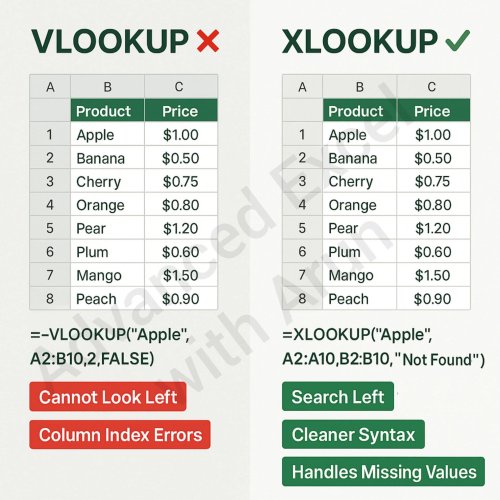
Master in MS Excel - Formula and shortcuts etc

Most Important Functions in Exel πŸ‘πŸ»
Every Pro Exel user uses these Functions. πŸ€©πŸ’»πŸ“Š

#professional #exceltips #tips #formulas #Microsoft
1000245633.jpg
 
6 Excel Functions Everyone Should Know!
#ExcelFunctions #excelformulas #exceltips
1000245640.jpg
 
Excel Basic Essential Functions You Must Know!
#excelfunctions #excelformulas #exceltips #ProductivityHacks
1000245641.jpg
 
πŸ”Ή Ctrl + Z – Undo last action βͺ
---

✨ Quick Tip:
Use Ctrl + Z multiple times to step back through your actions β€” it’s your lifesaver when something goes wrong in Excel!

---
1000245643.jpg
#excelshortcuts
 
Here's my Excel Formulas handbook I use every day! πŸ’―
1000245644.jpg
Save this for quick reference! πŸ”–

#exceltips #exceltricks #exceltutorial #explore #excelformulas #excelshortcuts
 
30 Microsoft Excel Advanced Layout and Formatting Shortcuts to Boost Productivity!
1000245646.jpg
#excelshortcuts #KeyboardShortcuts #exceltips #ProductivityHacks
 
Advanced Excel Shortcuts
1000247737.jpg
Comment App to learn Excel Shortcuts for free

#Excel #excelshortcuts
 
Most Popular Excel Formulas! 🎁🎁🎁
1000248482.jpg
.
.
.
#Excel #exceltips #excelformulas #excelfunctions #exceltraining #exceltricks #exceltipsandtricks #exceltutorial #CAPSLOCK
 
Intermediate Excel ShortcutsπŸ‘ŒπŸ’―
1000249766.jpg
.
.
#excelshortcuts #exceltips #exceltraining #microsoftexcel #TechHome
 
1000249933.jpg
Excel Editing Functions. Comment β€œEDIT” for the complete Excel Editing Cheatsheet.

#excelwithjustus #picoftheday #usa #uk #students
 
EXCEL TABLE SHORTCUTS (SAVE THIS)

♦️Ctrl+T – Convert range into an Excel Table
♦️Ctrl+Shift+L – Toggle filters in table
♦️Tab – Move to next cell in table
♦️Shift+Tab – Move to previous cell
♦️Ctrl+ArrowKeys – Jump to table edges
♦️Ctrl+Shift+ArrowKeys – Select table data
♦️Alt+DownArrow – Open table filter dropdown
♦️Ctrl+Space – Select entire table column
♦️Shift+Space – Select entire table row
♦️Ctrl+Shift+Plus – Insert new table row
♦️Ctrl+Minus – Delete selected table row
♦️Ctrl+; – Insert current date in table
♦️Ctrl+Shift+: – Insert current time in table
♦️Ctrl+Alt+V – Paste special inside table
♦️F4 – Repeat last table action

#excel #pctipsandtricks #excel #excelkeyboardshortcuts #usa
 
✦ Alt + H + O + I β†’ Auto fit column width
✦ Alt + H + D + C β†’ Delete column
✦ Alt + H + D + R β†’ Delete row
✦ Alt + N + V β†’ Create PivotTable
✦ Alt + N + F + S β†’ Insert SmartArt
✦ Alt + F1 β†’ Create chart in the same sheet
✦ Shift + Space β†’ Select entire row
✦ Ctrl + Space β†’ Select entire column
✦ Ctrl + ; β†’ Insert current date
✦ Alt + H + O + R β†’ Rename worksheet
✦ Alt + H + M + C β†’ Merge and center
✦ Alt + H + B + N β†’ Remove all borders
✦ Alt + A + T β†’ Open the Sort dialog box
✦ Alt + W + F + F β†’ Freeze or unfreeze
✦ Ctrl + Shift + "+" β†’ Insert new row or column
✦ Ctrl + "-" β†’ Delete selected row or column
✦ Ctrl + Shift + "~" β†’ Apply general number format
✦ Ctrl + Shift + @ β†’ Apply time format
✦ Ctrl + Shift + ^ β†’ Apply exponential format
✦ Ctrl + Shift + & β†’ Apply outline border
✦ Ctrl + Shift + _ β†’ Remove outline border
✦ Ctrl + 8 β†’ Show or hide outline symbols
✦ Ctrl + Alt + F9 β†’ Recalculate all formulas
✦ Ctrl + Shift + O β†’ Select cells with comments
✦ Ctrl + Z β†’ Undo last action
✦ Ctrl + Y β†’ Redo last undone action
✦ Ctrl + Q β†’ Quick Analysis tool
✦ Ctrl + Shift + L β†’ Add or remove filters
✦ Ctrl + Shift + U β†’ Expand or collapse formula bar
✦ Ctrl + Shift + Arrow Keys β†’ Select entire data range.

✦ Ctrl + S β†’ Save workbook instantly
✦ Ctrl + N β†’ Create new workbook
✦ Ctrl + O β†’ Open existing workbook
✦ Ctrl + P β†’ Print current sheet
✦ Ctrl + F β†’ Find text or numbers
✦ Ctrl + H β†’ Find and replace
✦ Ctrl + A β†’ Select all data
✦ Ctrl + C β†’ Copy selected cells
✦ Ctrl + V β†’ Paste copied data
✦ Ctrl + X β†’ Cut selected cells
✦ F2 β†’ Edit active cell
✦ F4 β†’ Repeat last action / lock cell reference ($)
✦ F7 β†’ Spell check
✦ F11 β†’ Create chart in new sheet
✦ F12 β†’ Save As dialog box
✦ Ctrl + Page Up β†’ Move to previous worksheet
✦ Ctrl + Page Down β†’ Move to next worksheet
✦ Ctrl + Tab β†’ Switch between open workbooks
✦ Ctrl + 1 β†’ Open Format Cells dialog box
✦ Ctrl + Shift + $ β†’ Apply currency format
✦ Ctrl + Shift + % β†’ Apply percentage format
✦ Ctrl + Shift + # β†’ Apply date format
✦ Alt + = β†’ AutoSum formula
✦ Ctrl + D β†’ Fill down
✦ Ctrl + R β†’ Fill right
✦ Ctrl + Enter β†’ Fill selected cells with same value

#Shortcuts #Excel
 
πŸ”Ή Alt + H + M + M - Merge across
πŸ”Ή Alt + H + M + A - Merge cells and center
πŸ”Ή Alt + H + M + S - Merge selected cells
πŸ”Ή Alt + H + F + C + N - Apply navy font color
πŸ”Ή Alt + H + H + N - Apply navy fill color
πŸ”Ή Alt + A + F + M + M - Filter by minute
πŸ”Ή Alt + H + B + A + A - Apply all borders
πŸ”Ή Alt + H + V + S + F - Paste special with formulas
πŸ”Ή Alt + H + L + W - Apply contains-error conditional formatting
πŸ”Ή Alt + H + O + W + A - Set all columns to same width
πŸ”Ή Alt + H + O + E + A - Set all rows to same height
πŸ”Ή Alt + H + F + T + A - Apply angled text orientation
πŸ”Ή Alt + H + I + S + C - Insert chart sparkline
πŸ”Ή Alt + H + D + S + C - Delete chart sparkline
πŸ”Ή Alt + A + F + T + S - Sort by text length
πŸ”Ή Alt + H + F + C + E - Apply emerald font color
πŸ”Ή Alt + H + H + E - Apply emerald fill color
πŸ”Ή Alt + H + V + S + C - Paste special with comments
πŸ”Ή Alt + H + O + P + A - Protect all sheets
πŸ”Ή Alt + H + O + U + A - Unprotect all sheets
πŸ”Ή Alt + H + B + N + N - Remove all borders (alternative)
πŸ”Ή Alt + H + F + S + T - Apply title case font style
πŸ”Ή Alt + A + F + C + C - Clear color filters
πŸ”Ή Alt + H + I + W + S - Insert worksheet at end
πŸ”Ή Alt + H + F + C + S - Apply silver font color
πŸ”Ή Alt + H + H + S - Apply silver fill color
πŸ”Ή Alt + H + V + S + N - Paste special with no borders
πŸ”Ή Alt + H + F + T + U - Apply upward text orientation
πŸ”Ή Alt + H + F + T + D - Apply downward text orientation
πŸ”Ή Alt + A + F + S + T - Sort by text case

Merge Across Tip: Use Alt + H + M + M to merge cells across a row selection, creating clean headers for your data tables!

#ExcelShortcuts
 
πŸ”Ή Ctrl + 9 β†’ Hide selected rows
πŸ”Ή Ctrl + 0 β†’ Hide selected columns
πŸ”Ή Ctrl + Shift + 9 β†’ Unhide rows
πŸ”Ή Ctrl + Shift + 0 β†’ Unhide columns
πŸ”Ή Ctrl + E β†’ Flash Fill
πŸ”Ή Ctrl + N β†’ New workbook
πŸ”Ή Alt + = β†’ AutoSum
πŸ”Ή Ctrl + ; β†’ Insert current date (static)
πŸ”Ή Ctrl + Shift + ; β†’ Insert current time (static)
πŸ”Ή Ctrl + 1 β†’ Open Format Cells dialog
πŸ”Ή Ctrl + T β†’ Create table
πŸ”Ή Ctrl + Space β†’ Select entire column
πŸ”Ή Shift + Space β†’ Select entire row
πŸ”Ή Ctrl + Arrow Keys β†’ Navigate to data region edge
πŸ”Ή Ctrl + Shift + L β†’ Toggle filters
πŸ”Ή Alt + N + V β†’ Insert PivotTable
πŸ”Ή Alt + A + M β†’ Remove duplicates
πŸ”Ή F2 β†’ Edit active cell
πŸ”Ή F4 β†’ Repeat last action / toggle absolute references
πŸ”Ή Ctrl + Z β†’ Undo
πŸ”Ή Ctrl + Y β†’ Redo
πŸ”Ή Ctrl + C β†’ Copy
πŸ”Ή Ctrl + X β†’ Cut
πŸ”Ή Ctrl + V β†’ Paste
πŸ”Ή Ctrl + F β†’ Find
πŸ”Ή Ctrl + H β†’ Replace
πŸ”Ή Ctrl + A β†’ Select current region (press twice for entire worksheet)
πŸ”Ή Ctrl + S β†’ Save workbook
πŸ”Ή Ctrl + O β†’ Open workbook
πŸ”Ή Ctrl + P β†’ Print

Quick Tip: Select rows and press Ctrl + 9 to hide them, then Ctrl + Shift + 9 to reveal. The same logic applies to columns using Ctrl + 0 and Ctrl + Shift + 0.
#excelshortcuts
 
Back
Top